

Picture this: I'm sitting down to watch some football over the weekend and, as the game is going on, there is a distinct blur on the TV. It's happening multiple times every few minutes and it's incredibly noticeable. It looks as though the game is lagging behind, which is a big problem when you're trying to enjoy live sports.
Then I realized both of the TVs I was using were Samsung smart TVs. That's when I did a deep dive into what could possibly be causing this issue. What I found was a simple fix and my game looked like new again. Here's all it took to fix the blurry images on my Samsung TV.

Samsung The Frame Pro
- Brand
- Samsung
- Operating System
- Tizen
- Display Type
- Neo QLED
- Display Resolution
- 4K
- Refresh rate
- 144Hz
- HDR
- HDR10+
Check the HDMI cable first
Sometimes the simplest answer is the right one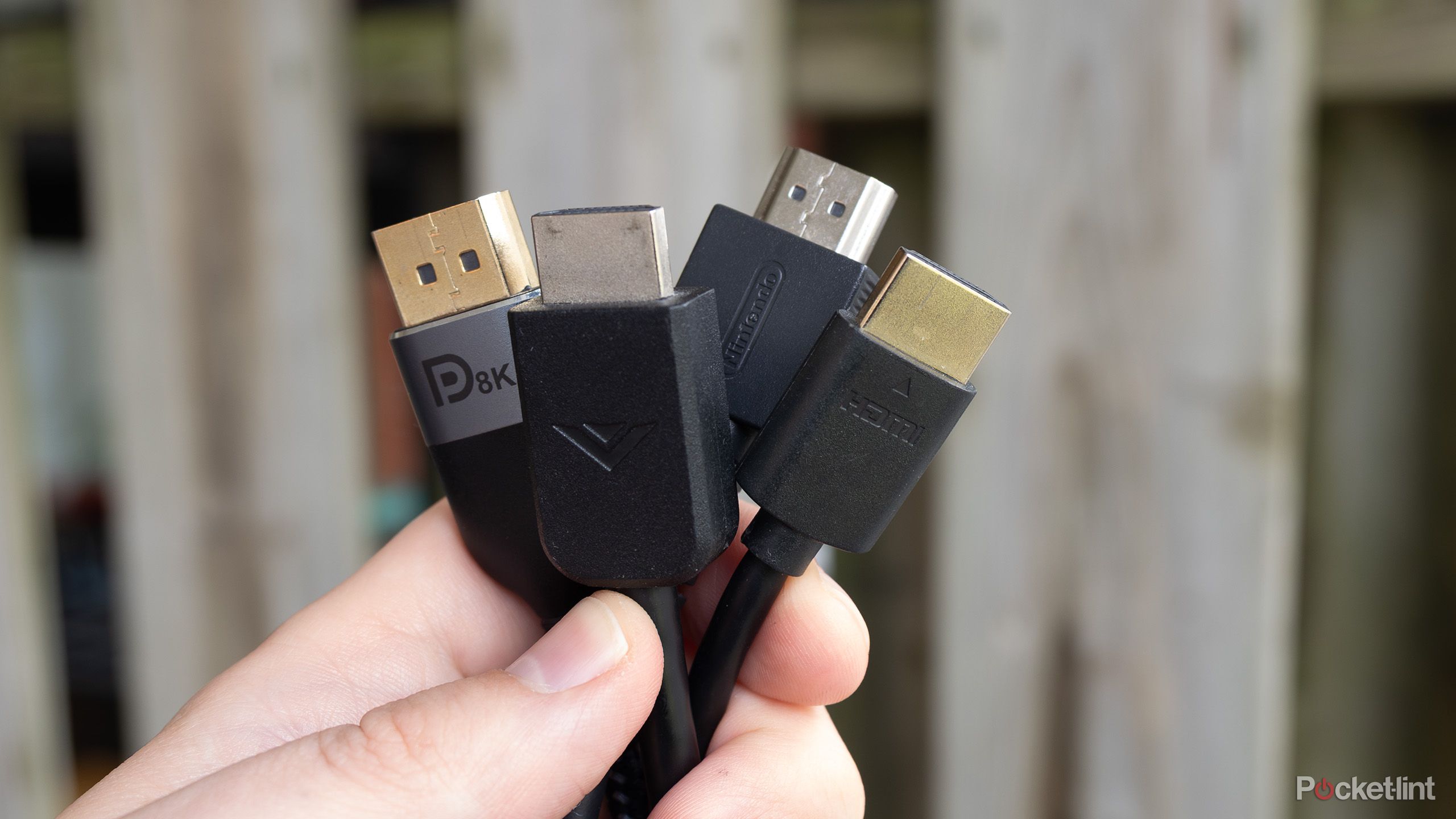
Despite the cable box not being the issue, I thought about the HDMI cables. I hadn't changed then in a while (not that I knew I was supposed to) but I figured why not see if there's some kind of issue with those. One of my TVs is mounted, making it the Samsung One box I needed to check. The other one is just on a dresser, so I could easily access that one.
If the HDMI cable is slightly loose, it may not connect to the TV well enough for the picture to come through clearly. This happens if you're plugging in an HDMI cable or any other option into your HDMI port, including streaming devices. Giving it a secure check to make sure it was properly connected to the set-top box as well as to the TV ensured that this wasn't the problem. It was on to the next option.
Samsung picture modes help solve the problem
Choosing the right one for the right content is smart

If you have a Samsung TV, there's a chance you can choose what kind of picture mode you want to view it with. There are options like Dynamic mode, which is meant for bright rooms, as the color of the TV is then pumped to ultimate brightness to combat the sunlight. Eco mode focuses on energy efficiency, dimming the backlight and lowering general settings. Standard mode is typically a median for all the settings. Movie mode is meant for dark rooms and helps optimize the lights for low-light situations.
Sports mode is another option, but that adds soap opera effects to the TV, meaning it can actually force the blur more easily. It honestly depends on your TV and your settings. You might find that Sports mode solves your problem. But it could also be a bigger issue, depending on what you're watching.
Get rid of your blur by not smoothing
Customizing specific options can make your situation better

Some smart TVs allow you to save preferred settings, so you won't have to go in each time and go through the settings process over again. It depends on your model of TV.
If you're still unhappy with how your TV looks, there's more you can do. You can take your settings into your own hands and adjust the TV for each sitting that you have.
When you're on your TV's home screen, you can toggle over to Settings and then to Picture. This is where you'll change the mode as well, so if you've tried that, you're already familiar with the menu. But what you may not have done is go into Expert Settings. It's here that you can customize your settings. You'll first want to turn off Motion Smoothing or video interpolation. When it's on, Motion Smoothing adds additional frames into a picture, trying to smooth out the picture. However, when it comes to watching sports, it can result in a blurry picture.
Final settings you can try
There are more granular settings to go through

To get the most out of your TV and to get rid of the blur, some Samsung smart TVs let you go even further down into the settings. This includes Custom Settings. You can find these in the same menu as the Expert Settings or under Picture Clarity in Settings. There might be slide bars that let you adjust with Blur Reduction and Judder Reduction.
Blur and Judder are synonymous for the same setting. You can adjust how intense that smoothing is. It does depend on which version of a Samsung Smart TV you have. I have a Samsung The Frame TV and was able to fix my blur with a mixture of turning off Motion Smoothing and adjusting the blur. Hopefully, if you take these steps, you'll find a better picture of whatever you're watching. If you want to repeat your experience, make sure to remember what settings you prefer for a specific viewing.